Just Mention a Teammate in Your AI Session
In short: In Bottari, a multiplayer AI workspace, you can @mention a teammate inside the AI session you’re working in. The message becomes a comment the agent never sees, and your teammate sees the whole session, so there’s nothing to paste or re-explain.
Bottari is a workspace where a whole team works with an AI agent in the same place. You open one session per piece of work. Everything you told the agent, everything it did, and the code and docs it touched all sit in that session. And the session lives in your team, not on your laptop.
So when you need a person, you don’t have to go anywhere. You call them into the session instead of walking over to Slack and explaining the situation again.
Here are the two ways we actually do that.
When you need someone to check your work
The agent did something and you can’t tell whether it’s right. Or your call touches somebody else’s area.
What to do
- Stay where you are. Type
@in the same box you’ve been prompting in. - Don’t write anything up. A short question like “Is it okay that the agent removed the old waitlist script?” is enough.
- If they can’t open the session, you’ll see “{names} can’t open this session, so they weren’t notified.” Click Give view access and notify next to it.
Can comment is enough here
If you only need a check, don’t hand out edit access. Can comment lets them read the whole session, answer you, and post a marked-up screenshot. The agent never sees any of it.
How we used it
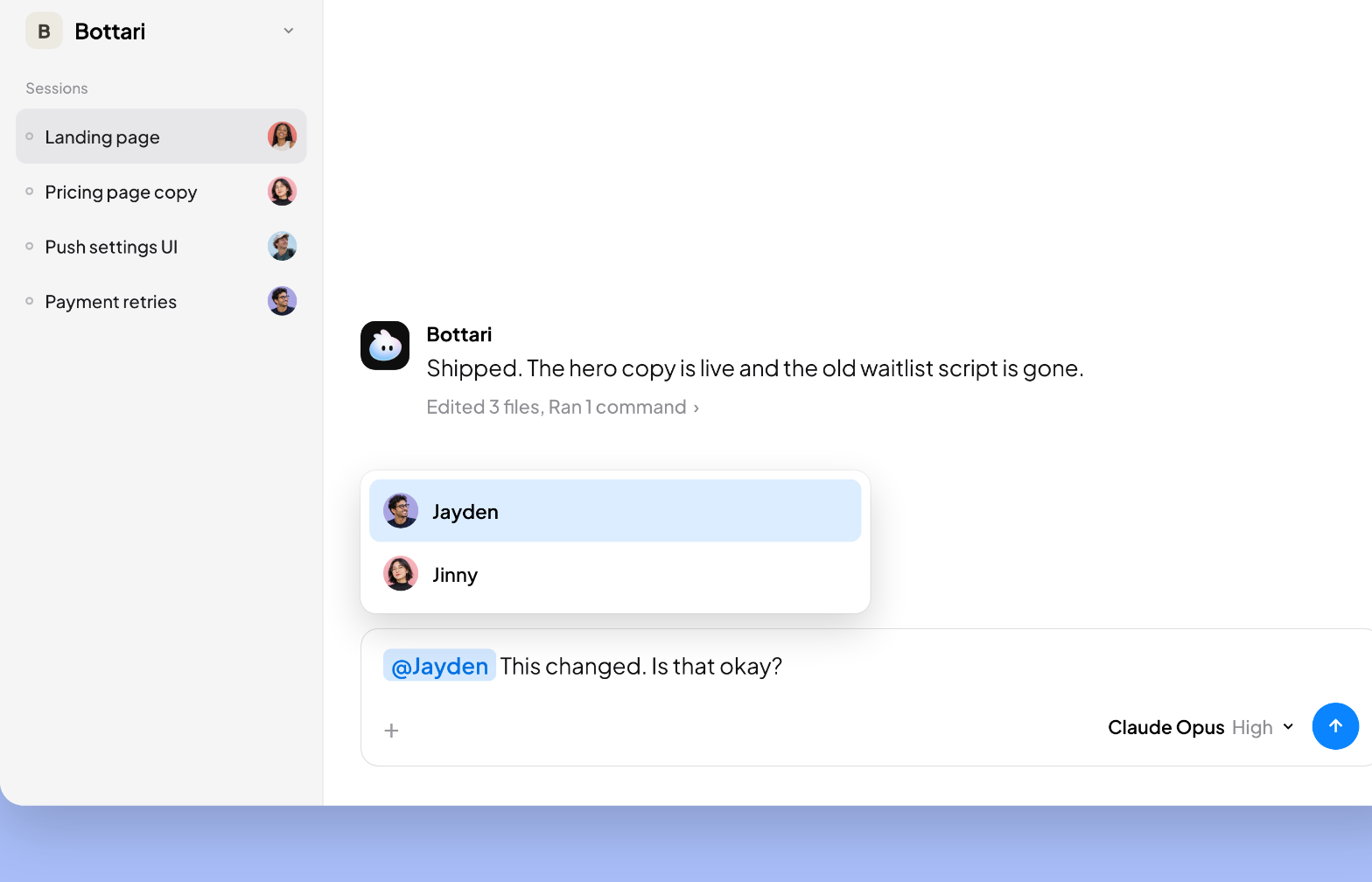
I built the landing page for this site. I’m not a developer. I made it with the agent and I shipped it myself.
There’s a kind of nervousness only a non-developer gets. The deploy is done. The agent tells you what it changed. You read it and you don’t know what it means. You can tell something got fixed. You can’t tell whether it was safe, whether it touched something else, whether it was supposed to work that way.
You can let it go. The site is up and nothing breaks today. But let enough of those pile up and you end up unable to explain your own work.
So I mentioned the dev team right there in the session and asked whether that change was safe.
Why this is easier than Slack
Take the same question to Slack and you have to decide what to paste.
The agent’s explanation? That’s the agent’s claim, and what the dev team needs to look at is the evidence, not the claim. The code that changed? Finding it and picking out the part that matters is the hard part.
Slack asks you to package the question. Packaging is the skill a non-developer doesn’t have. If you knew which part mattered, you could have decided on your own.
In the session, there’s nothing to package. The dev team opens it and sees everything that came before that one line: what I told the agent, which files it read, what it tried and backed out of, and what it changed. I didn’t pick any of it.
And the answer stays next to the work instead of in Slack. Three months later, whoever reads that code can see it was checked, right in the same place.
When you need to go back and forth with someone
You know what’s wrong but not how to fix it. Design, copy, layout—that kind of thing.
What to do
- Call them in and ask them to stick around. This isn’t one answer and done.
- Run the loop. They say something, you tell the agent, and you both look at what came out. Again.
- If it’s faster for them to prompt the agent directly, give them Can edit. They take the box and do it themselves.
How we used it
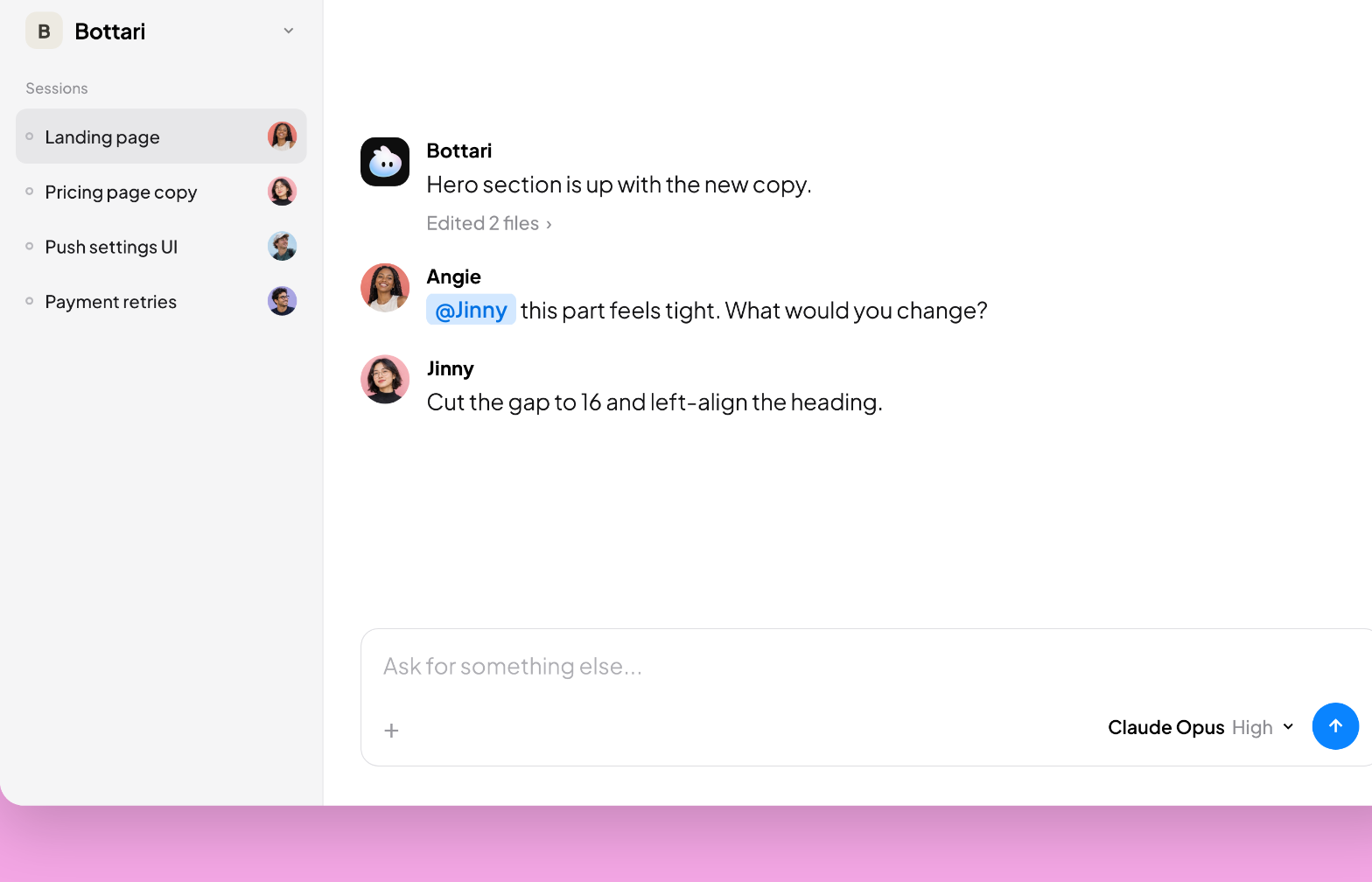
One section of the landing page kept feeling off. I could say where it bothered me, but I couldn’t say what to do about it. That’s the designer’s job.
So I called the designer into the session. They looked, told me what to change, I passed it to the agent, and we looked again. We finished that section that way, in one session, going back and forth.
Why a screen share doesn’t cover this
You could do this over a screen share, but then you become the go-between. The designer says what to change, you type it to the agent, you share your screen again, and you ask whether it looks right now. Every round goes through you, and you both have to be on the call at the same time.
In the session, the designer leaves their notes right next to the work. Those notes are comments, so the agent doesn’t act on them. You pass on the ones you want, or give the designer edit access and let them prompt the agent themselves. And the whole back-and-forth stays in the session instead of ending with the call.
That’s why the first thing we had to build wasn’t sharing. It was a way to talk inside the session without the agent listening.
Two things worth knowing
1. You can talk to people without mentioning anyone
Flip the Comment toggle in the box, and what you type goes to the people in the session, not to the agent. Switching back to talking to Bottari gets you out of it.
2. People come in, the work stays put
However many people join, the work still runs in one place. The designer doesn’t clone a repo or set up a dev environment. The dev team doesn’t copy my work over to their side to look at it.
Ask in Slack and one of two things happens: everyone checks in their own setup and the work drifts apart, or nobody checks at all.
Which access to give
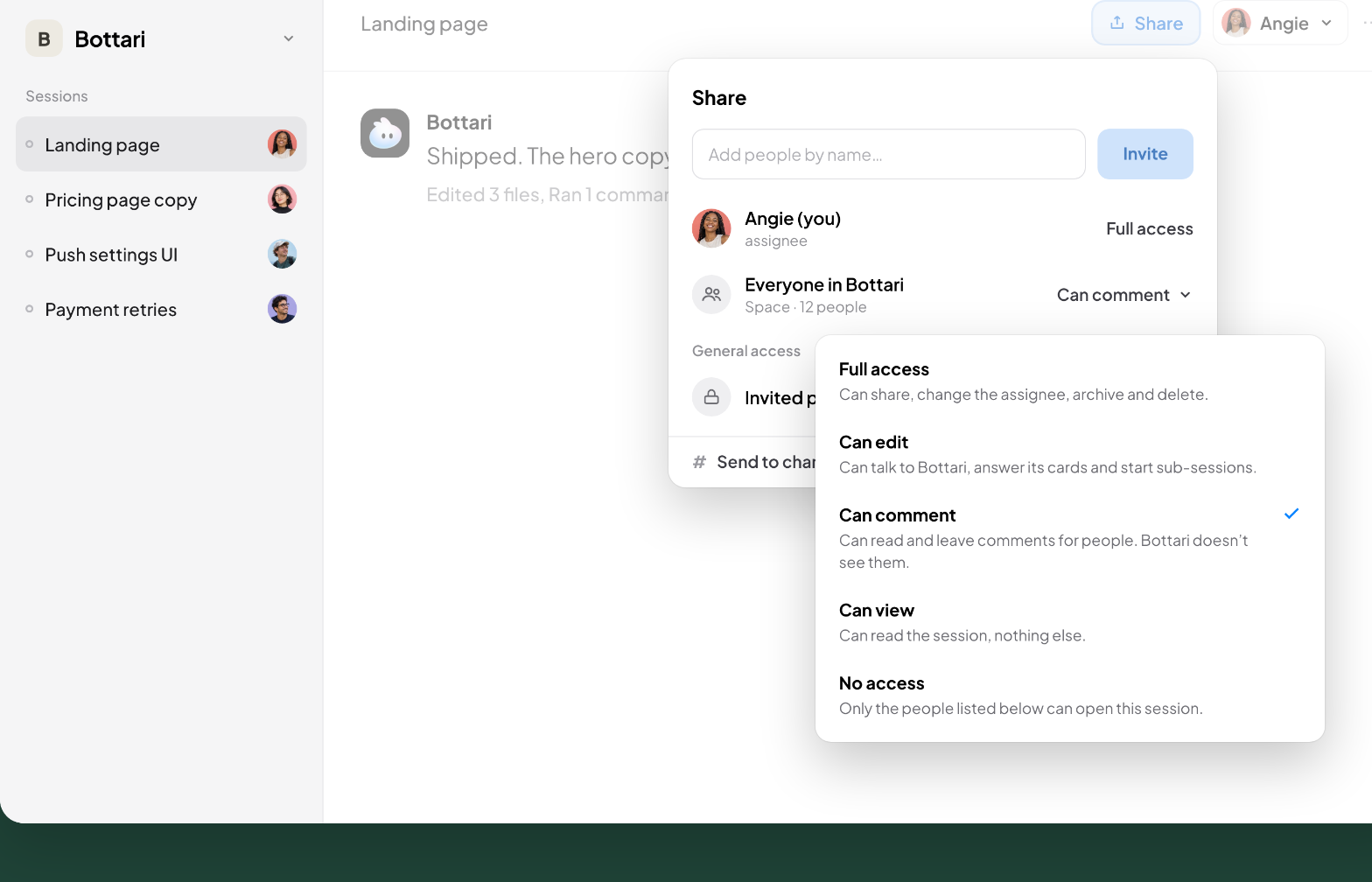
| What they’re doing | Give them |
|---|---|
| Reading, getting up to speed | Can view |
| Answering you, posting screenshots | Can comment |
| Prompting the agent, opening threads | Can edit |
| Sharing it, handing it off, archiving or deleting | Full access |
You don’t need to hand out edit access for a quick check. It works the other way too: if you can tell the back-and-forth is going to run long, open with Can edit and save yourself the interruption later.
Full access is for whoever is in charge of the session. They can share it, archive it, or hand it to someone else. Handing it off changes the assignee, and the session moves to that person’s machine with the whole conversation. They need Can edit first, and code you haven’t pushed stays behind.
If you’ve been using Claude Tag
Anthropic put an agent inside Slack channels. You tag it, it works in the thread, and anyone in the channel can pick up where a colleague left off. It’s good at handing off a task in Slack. If that’s your problem, use it.
Bottari starts from a different place. Three spots where you’ll feel it:
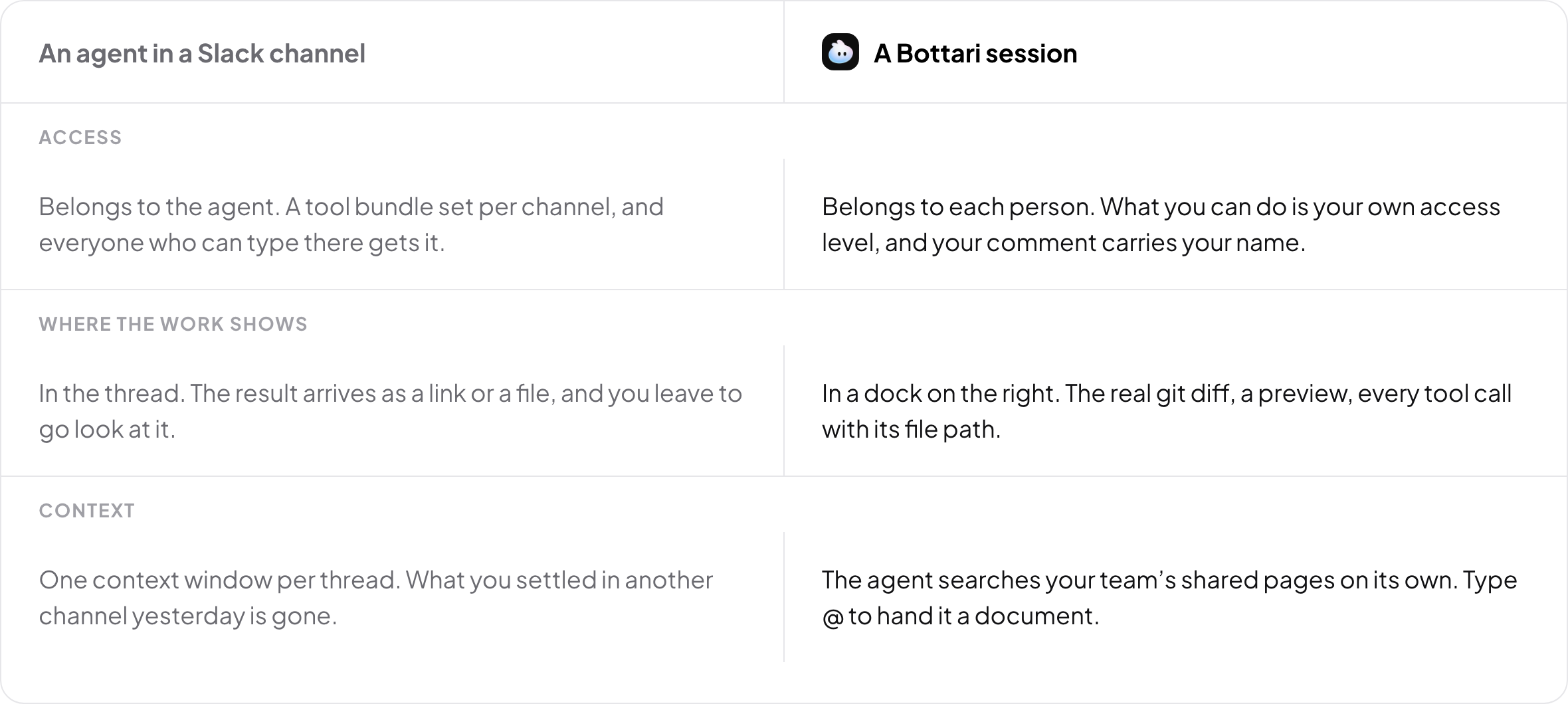
Access belongs to the person, not the agent. In a Slack channel, the agent mostly runs on its own authorization, with a tool bundle someone set up for that channel. Everyone who can type there gets whatever the agent was given, and downstream systems record the work under the agent’s account. In a session, what you can do is your own access level. The designer up above could read the whole thing and leave comments—and nothing else. Their comment carries their name.
It’s somewhere to work, not a chat window. A chat agent answers in the thread and hands you the result as a link or a file. You leave to go look at it, and when you want something changed, you come back and describe it. In a session, the work shows up in a dock on the right. The Changes tab holds the real git diff. The Preview tab starts the dev server. Every tool call is a clickable line with file paths and diffs. You look at what came out and type the next instruction without going anywhere.
Context comes from the work, not from notes. In a Slack channel, what carries over is what the agent chose to write down in its memory. In a session, the agent searches your team’s shared pages on its own, and you can type @, pick a document, and it reads the whole thing. Private pages stay private by design.
AI made each of us faster, but left the team about as slow as it was. The handoffs and the recaps were still ours to do by hand.
You can drop the recaps. When you need a quick dev check or a designer’s eye, don’t rebuild the explanation from scratch. Just mention them in the session.
Start working with your team and AI in one place.